Quick Start: Your First Live
This page is for people using TStar for the first time. Follow the five steps in order and the gifts your viewers send will turn into live scores on your stream. Each step covers only the minimum you need to do; click the link in a step for the details.
Before you start, have three things ready:
- A Windows or macOS computer that can run the console and TikTok LIVE Studio at the same time while you stream (for hardware advice, see Performance & Hardware Recommendations)
- A TikTok account that can already go live with TikTok LIVE Studio
- A TStar license key: if you haven't bought one, sign up for a website account first and request a 7-day free trial under "My account"
1. Download and install the console
Download the installer for your system from the download page and follow the setup wizard. If Windows shows a SmartScreen warning, click "More info" → "Run anyway".
Details: Install and Set Up TStar
2. Activate your license key
Open the console and an activation window appears in the middle of the screen. Copy your key from "My account" on the website, paste it into the "License key" field, and click "Activate and enter". The key binds to this computer, not to a TikTok account, so you don't need to activate again when you stream from a different account.
Details: License Purchase & Activation
3. Connect to your TikTok live room
In the connection bar at the bottom of the console, type the TikTok account you will stream with (no
@needed) and click "Connect". It only needs the account handle and never asks for your TikTok password. If you haven't gone live yet, the button shows "Waiting for stream to start" and attaches automatically once you do.
Details: Connect Your TikTok Account
4. Paste the overlay into TikTok LIVE Studio
Pick the game mode you want in the console, then click "🔗 Copy link" in the bottom connection bar. In TikTok LIVE Studio, add a "Browser Source", paste the link into the URL field, and enter the width and height shown next to the copy button. The background is already transparent, so no chroma key is needed.
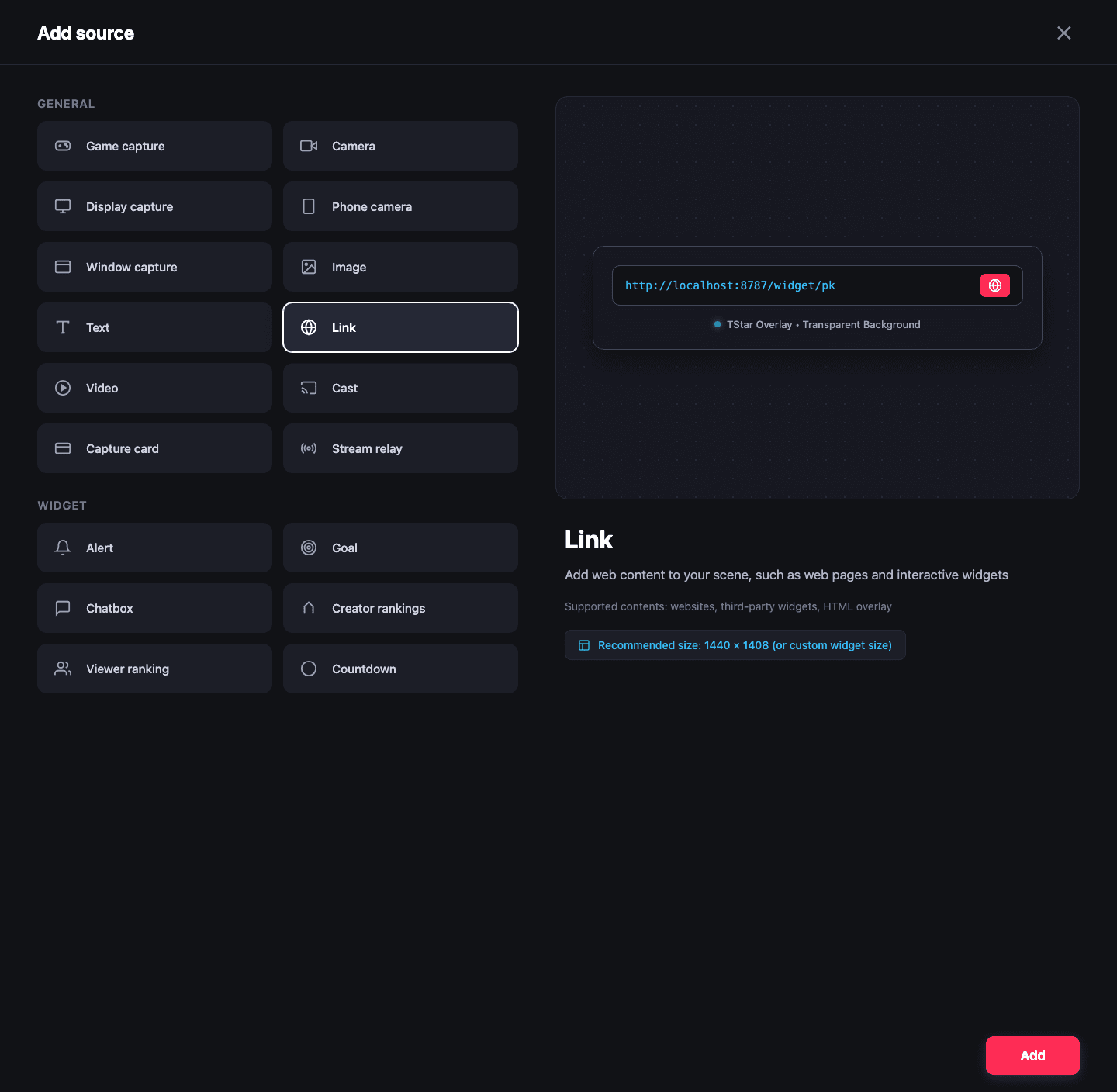
Paste the copied TStar link into the URL field and set the source dimensions. Details: Connect TikTok LIVE Studio
5. Start your first round
Go back to the console home, click the game mode you want, set the hosts and representative gifts, and click "Start". When the countdown ends, the system settles the result automatically, so you don't have to call the winner yourself.
For your first time, we suggest starting with PK Battle: Set Up Your First TikTok PK
The three most common stumbling points
- You didn't click "Start": being connected to the live room doesn't mean scoring has started. Gifts sent before the round starts don't count toward the score.
- The overlay is black or blank: usually the link was pasted wrong, or the console isn't connected to the live room yet. Go back and check steps 3 and 4.
- The button shows "Connect Backend First": most often antivirus software or a firewall is blocking the console's connection. Run "Connection diagnostics" on the Settings page and email the report to support.
Pre-stream checklist
Before you go live for real, check the preview in TikTok LIVE Studio:
- The overlay appears where you want it and isn't covered by the camera or another source
- The console's bottom connection bar shows connected (or "Waiting for stream to start")
- The right game mode is selected, with the host names and representative gifts all set
- The console stays open and connected throughout the stream
What to read next
- Console Tour: what the Home layout slots, live mode, and host roster each do
- Overlay Sizing & Layout Guide: how to place overlays on portrait and landscape screens without blocking faces
- Interactive Widgets: non-scoring audience tools such as the wheel, slot machine, fishing, and polls
- Troubleshooting: checklists for when it won't connect, scoring doesn't move, or an update fails
Last updated · Written and maintained by Novus